Erste Schritte
Konto anlegen, eine Organisation hinzufügen und die erste Anlage ausleihen.
WhoTookWhat ist die Web-App unter /admin. Die öffentliche Website ist für Preise, FAQ und diese Doku. Die tägliche Arbeit beginnt nach der Anmeldung.
Ein Mitglied kann sich anmelden. Eine Ausleihe geht an eine Person (oder Abteilung). Diese Person braucht kein Login.
Schnellstart
Vom neuen Konto zur ausgeliehenen Anlage. Für diese erste Ausleihe brauchen Sie kein zweites Login, keinen Standort, keine Kategorie und kein Foto.
1. Konto anlegen
Öffnen Sie Test starten. Nutzen Sie E-Mail und Passwort oder Google, Microsoft oder Apple.
2. Organisation anlegen
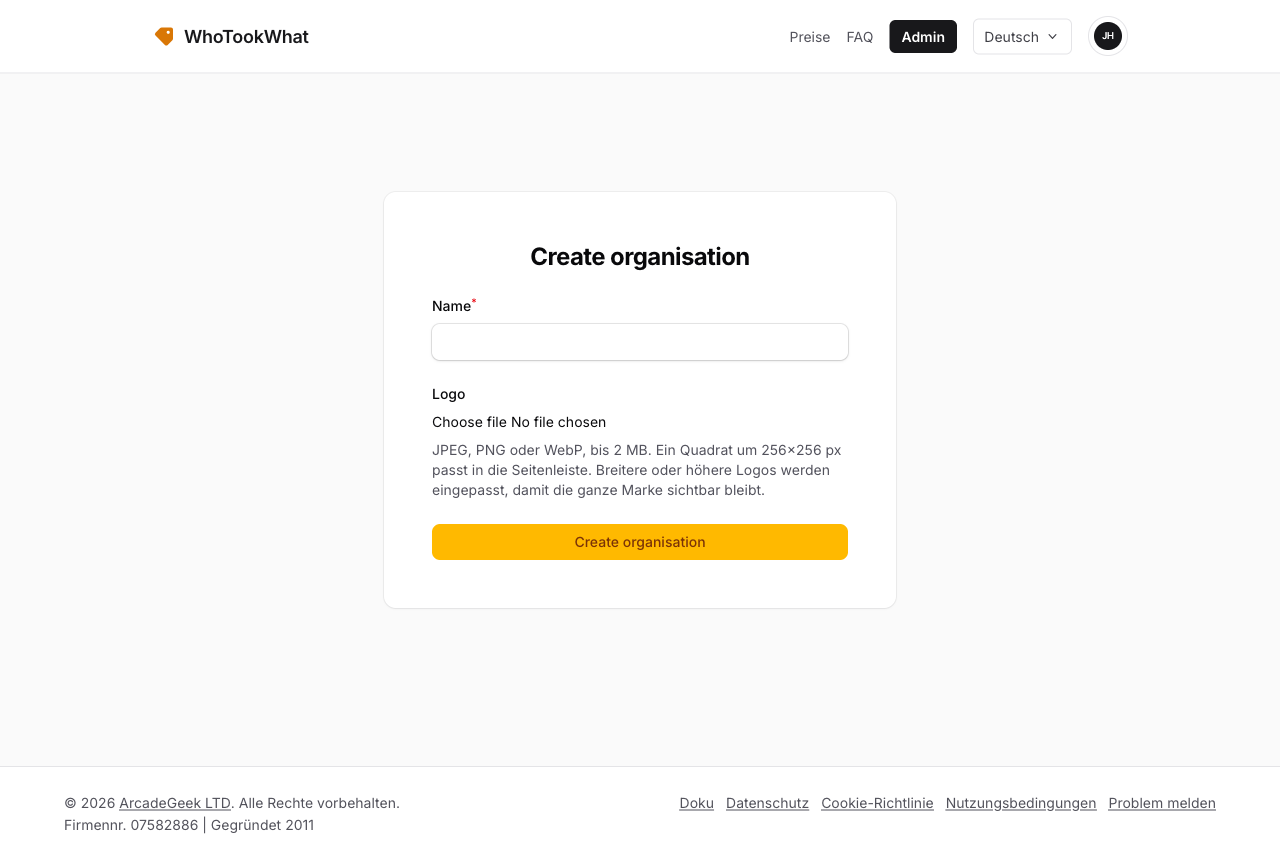
Benennen Sie Ihre erste Organisation. Sie werden Owner. Der 30-Tage-Test beginnt dann.
3. Person hinzufügen
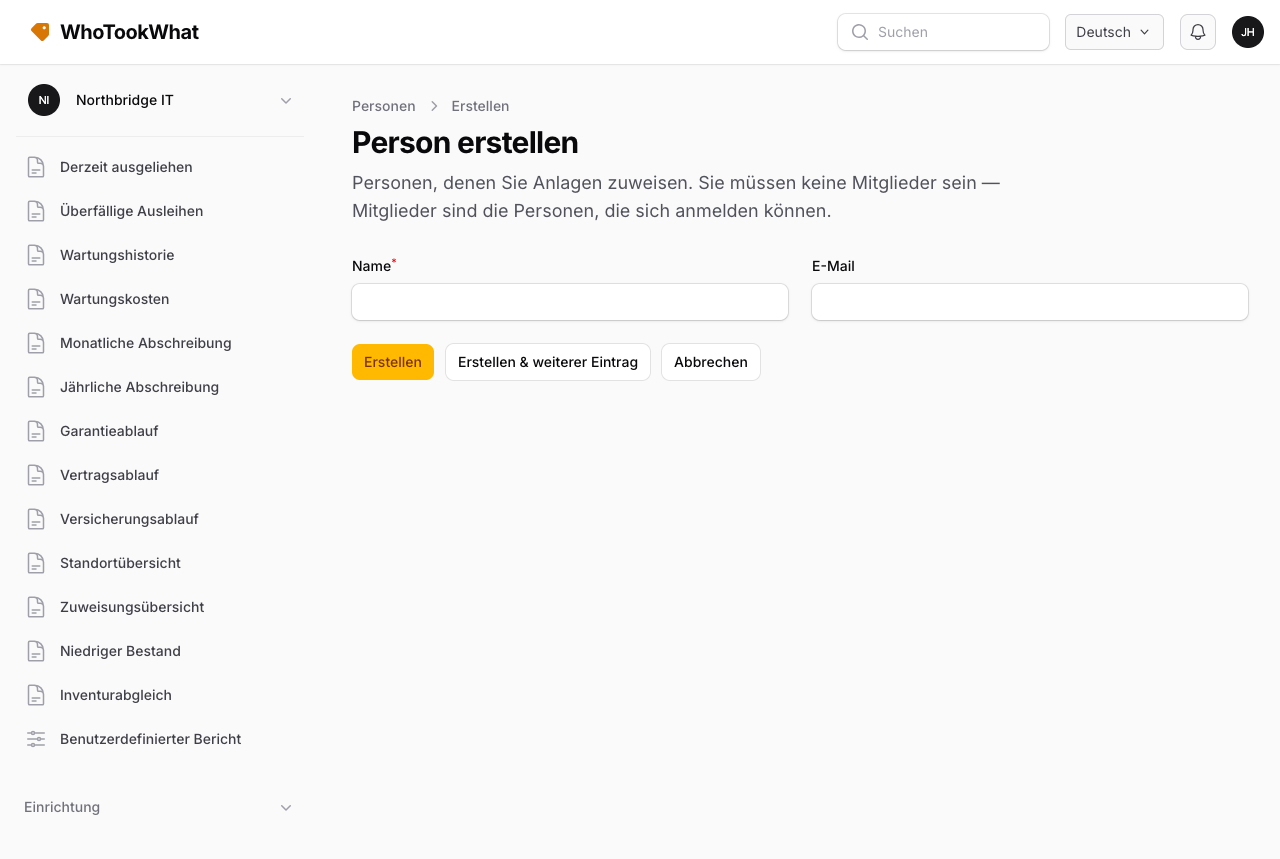
Öffnen Sie Setup → Personen und legen Sie die Person an, die die Anlage halten wird. Ein Name reicht — zum Beispiel Priya Shah am Service Desk.
4. Anlage hinzufügen
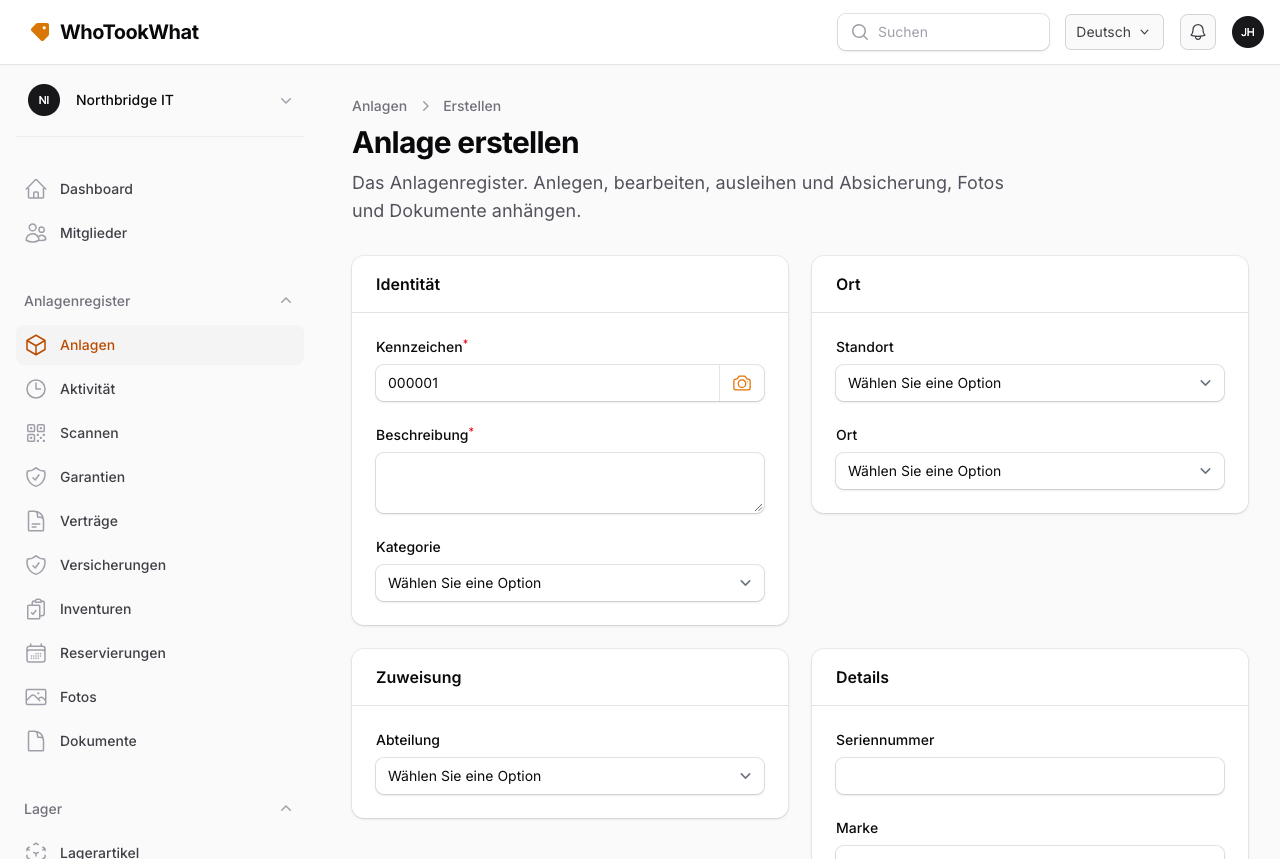
Öffnen Sie Anlagenregister → Anlagen und legen Sie eine Anlage an: ein Kennzeichen (der gedruckte Code) und eine Beschreibung — zum Beispiel LAP-014 und MacBook Pro 14.
5. Ausleihen
Öffnen Sie diese Anlage und wählen Sie Ausleihen. Wählen Sie die Person, setzen Sie ein Fälligkeitsdatum und speichern Sie. Der Status wird ausgeliehen.
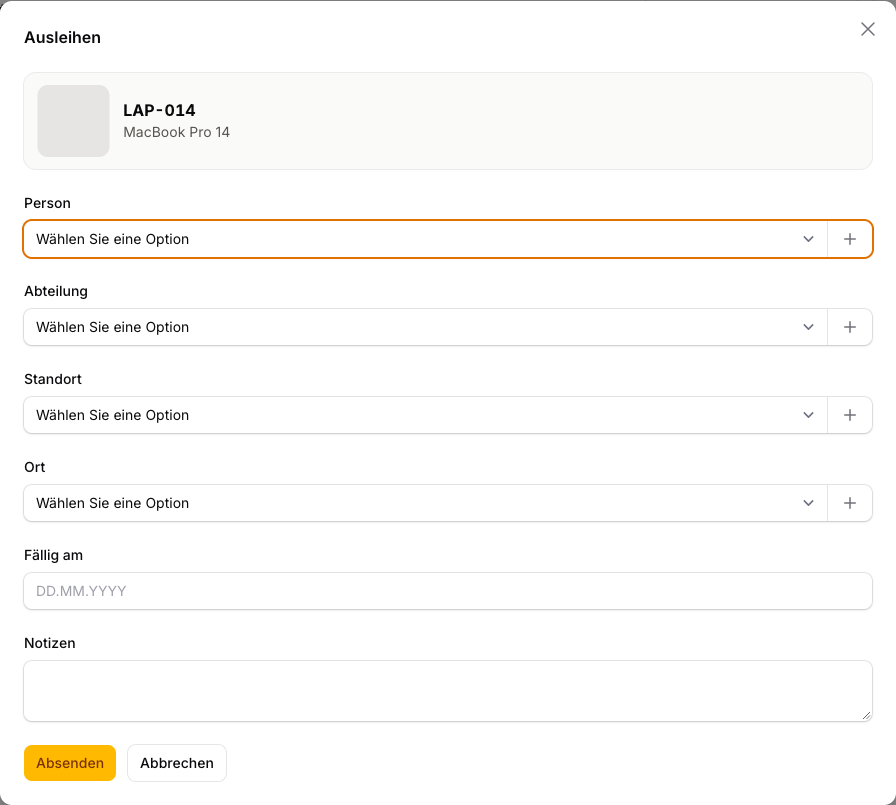
Eine Ausleihe braucht eine Person, eine Abteilung oder einen Ort — eines davon. Standort und Ort bei der Ausleihe nur, wenn Sie festhalten, wohin es gegangen ist.
Damit ein Staff-Mitglied die Ausleihe durchführt (nicht nur die Anlage entgegennimmt): laden Sie die Person als Staff ein (der Test erlaubt zwei Personen). Sie nimmt an, öffnet die Anlage und leiht sie auf dieselbe Weise aus. Staff hat bereits Ausleihen und Einchecken. Auditor nicht.
Die erste Stunde
Nach dieser ersten Ausleihe umfasst die restliche erste Stunde meist:
- Legen Sie unter Setup einen Standort und ein paar weitere Personen an.
- Legen Sie weitere Anlagen an oder importieren Sie eine Tabelle.
- Nutzen Sie das Dashboard für aktuelle Zahlen und Favoriten (Favorites im US-Englisch). Bearbeiten Sie diese Verknüpfungen auf dem Dashboard für jede Organisation. Die Glocke in der Kopfzeile zeigt dieselbe aktuelle Arbeit (überfällig, Wartung, Absicherung, Bestand) — siehe Hinweise.
- Nutzen Sie Scannen, wenn Sie ein gedrucktes Kennzeichen in der Hand haben.
Was getrennt bleibt
Jede Organisation hat ihr eigenes Register, eigene Mitglieder und (nach dem Test) einen eigenen bezahlten Tarif. Ihr Profil gilt für jede Organisation, der Sie angehören.
Die mobile App nutzt dasselbe Konto.