Getting started
Create an account, add an Organisation, and check out your first asset.
WhoTookWhat is the web app at /admin. The public site is for pricing, FAQ, and these docs. Day-to-day work happens after you sign in.
A member is someone who can sign in. Checkout goes to a person (or department). That person does not need a login.
Quick Start
From a new account to a checked-out asset. You do not need a second login, a site, a category, or a photo for this first checkout.
1. Create an account
Open Start trial. Use email and password, or Google, Microsoft, or Apple.
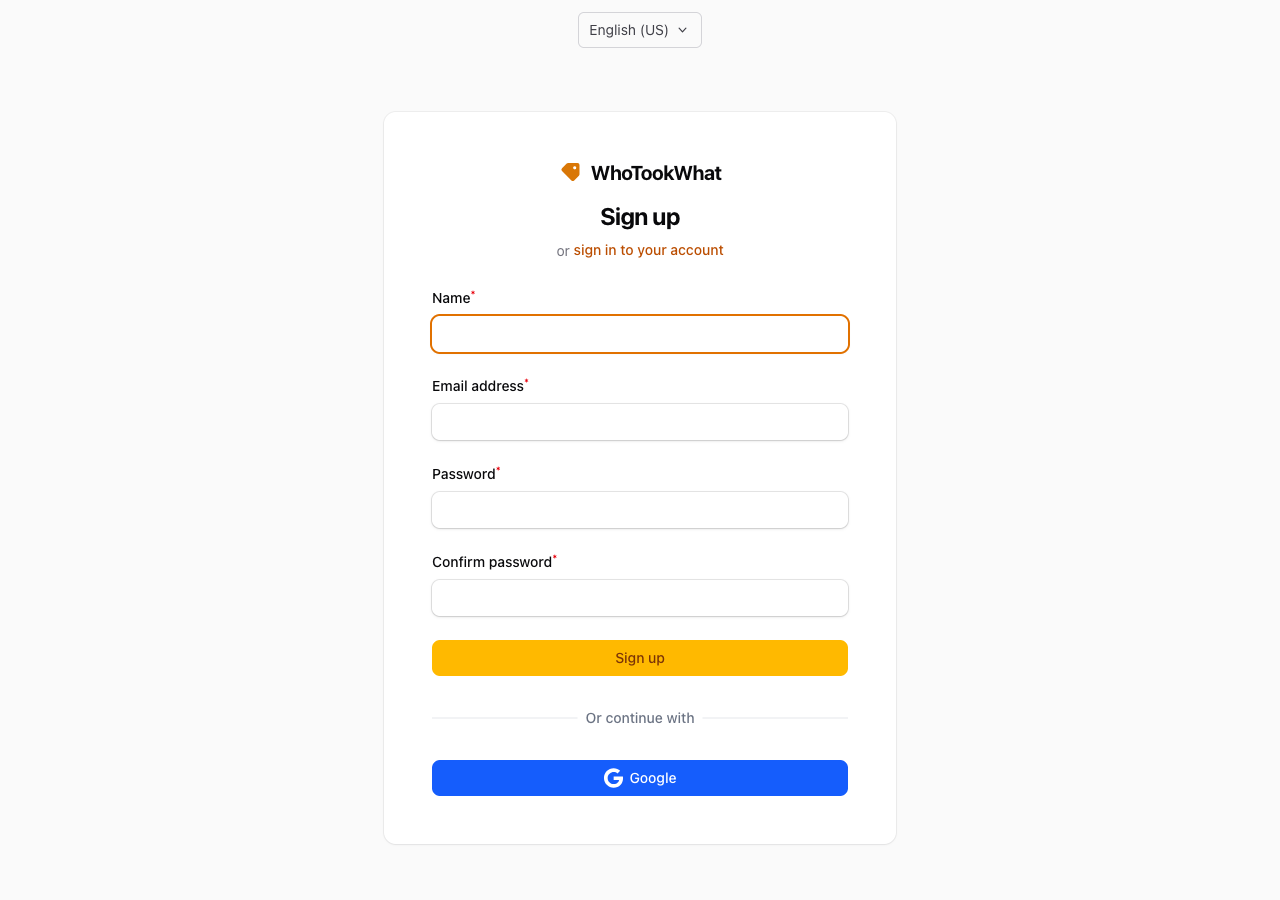
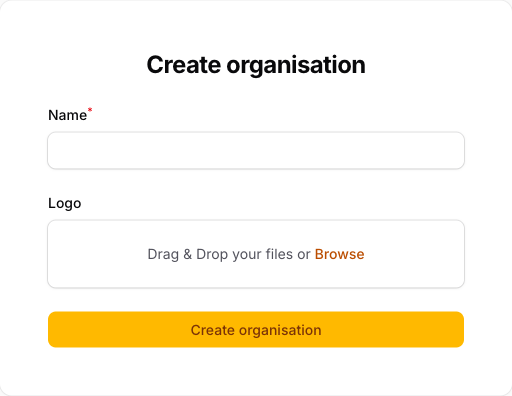
2. Create an Organisation
Name your first Organisation. You become its Owner. The 30-day trial starts then.
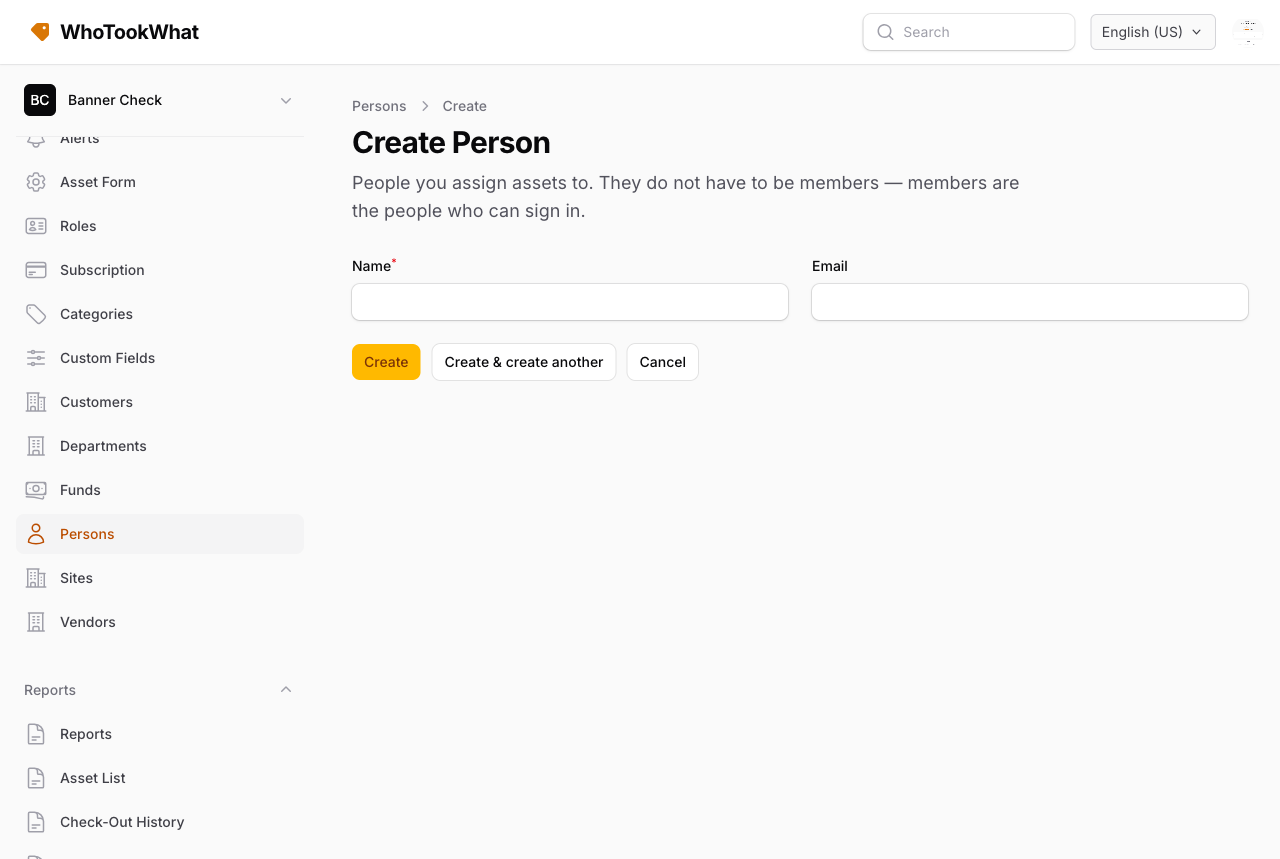
3. Add a person
Open Setup → People and add the person who will hold the asset. A name is enough — for example Priya Shah on the service desk.
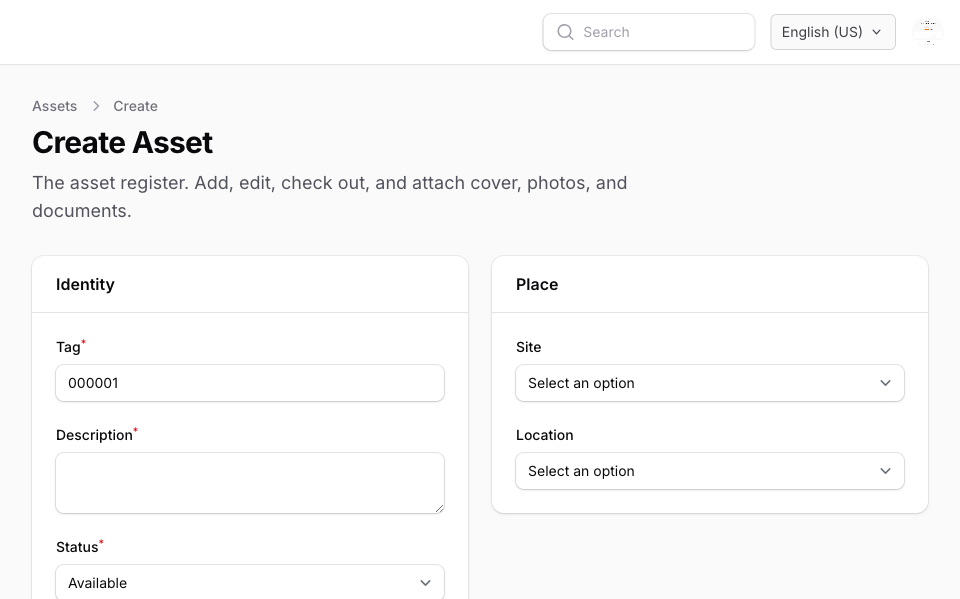
4. Add an asset
Open Register → Assets and add one asset: a tag (the printed code) and a description — for example LAP-014 and MacBook Pro 14.
5. Check it out
Open that asset and choose Check out. Pick the person, set a due date, and save. Status becomes checked out.
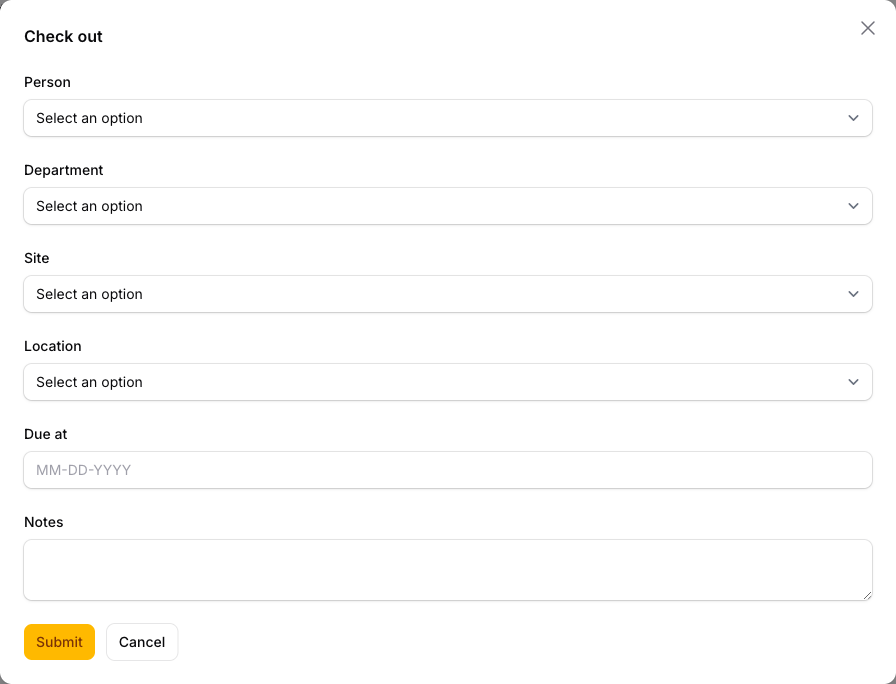
Checkout needs a person, a department, or a place — one of those. Site and location on checkout are only if you track where it went.
To have a Staff member do the checkout (not only receive the asset): invite them as Staff (the trial allows two people). They accept, open the asset, and check it out the same way. Staff already have Check out and in. Auditor does not.
First hour
After that first checkout, the rest of a first hour is usually:
- Add a site and a few more people under Setup.
- Add more assets, or import a spreadsheet.
- Use the Dashboard for live counts and Favourites (Favorites in US English). Edit those shortcuts on the Dashboard for each Organisation. The header bell is the same live work (overdue, maintenance, cover, stock) — see Alerts.
- Use Scan when you have a printed tag in hand.
What stays separate
Each Organisation has its own register, members, and (after the trial) its own paid plan. Your profile is yours across every Organisation you belong to.
The mobile app uses the same account.