Members and roles
Invite people and choose what they can do.
Members are people who can sign in to this Organisation. Open Members from the sidebar. Search the table by name or email, and sort by name, email, or role, to find someone and use Edit, Delete, or Resend invite.
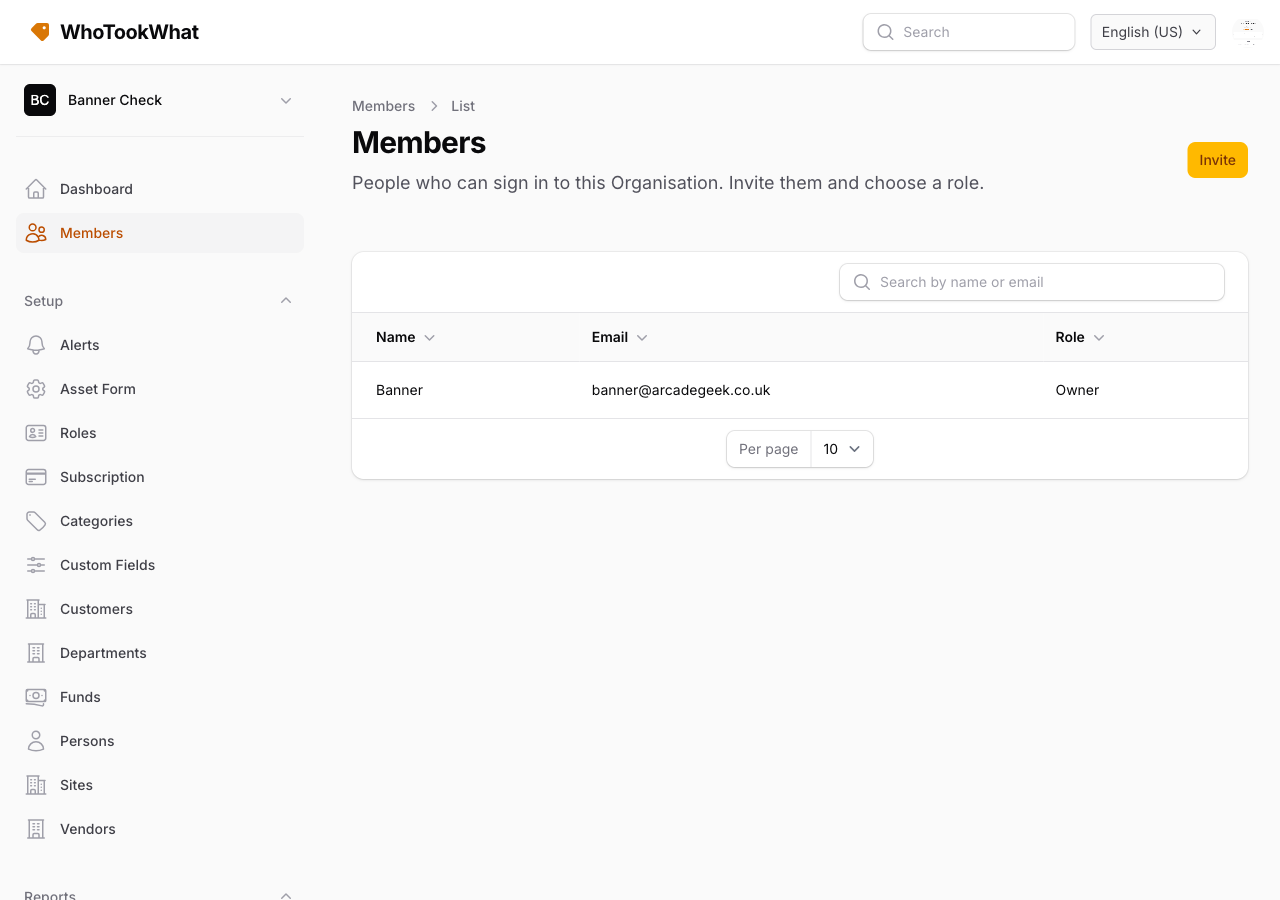
Invite
Owners and managers send an invite by email and role. The person gets a link. If they already have a WhoTookWhat account, they join this Organisation. If not, they register first. Owners and managers can also invite or cancel a pending invite from the mobile app. Changing a role and removing a member stay on this page.
You can invite any verified address on that account, including an extra address they added on Profile. If the address is already on an account but not verified, Members asks you to confirm before sending: they must be signed in to that account to accept, and accepting marks the address as verified. An address that already belongs to someone in this Organisation cannot be invited again.
Pending invites stay on Members until they join; you can resend or delete them. For people who have joined, Edit changes their role and Delete removes them from this Organisation (their WhoTookWhat account stays). You cannot delete the last Owner or change an Owner’s role here — transfer ownership on Subscription.
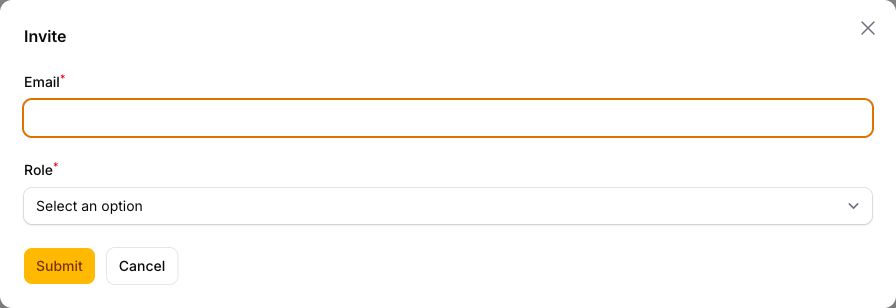
The trial allows two people in an Organisation. Paid plans have unlimited users.
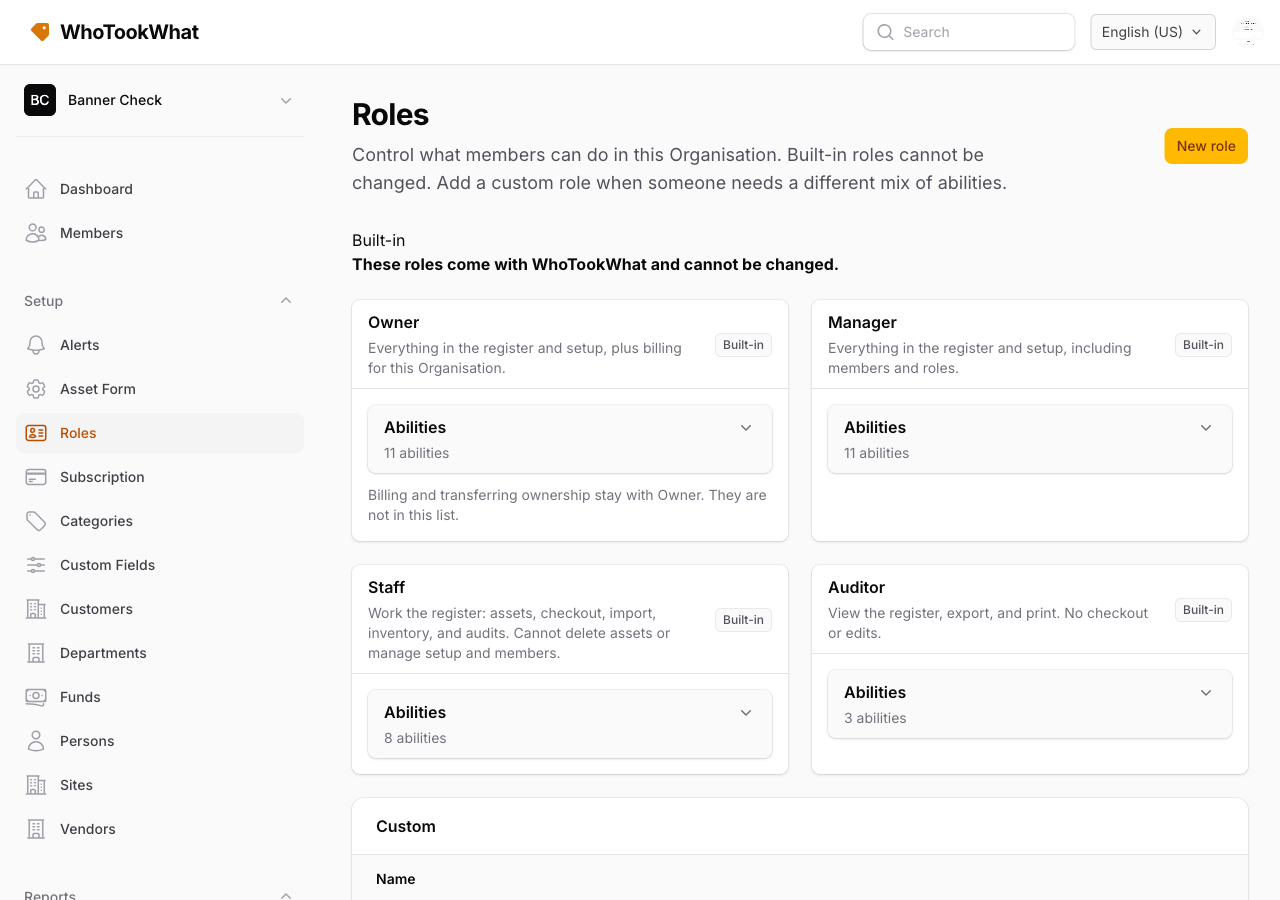
Built-in roles
| Role | What they can do |
|---|---|
| Owner | Everything, including billing for this Organisation |
| Manager | Everything in the register and setup, including members and roles |
| Staff | Work the register: assets, checkout, import, inventory, audits. Cannot delete assets or manage setup and members |
| Auditor | View the register, export, and print. No checkout or edits |
Custom roles
Owners and managers open Roles (Setup) to review the built-in roles (read-only) and add a custom role:
- View register
- Manage assets
- Delete assets
- Check out and in
- Import assets
- Export and reports
- Print labels
- Manage setup
- Manage members
- Manage inventory
- Manage audits
Leave or remove
A member can be removed from the Organisation. That does not close their WhoTookWhat account. The last Owner of an Organisation that still has other members cannot close their account until they transfer ownership to a member who has already joined, or those members are removed. See Close your account.